Introduction
Twilio is a cloud-based communication platform that enables businesses to connect applications, services, and systems through programmable messaging and voice APIs. Twilio is commonly implemented alongside enterprise platforms using MuleSoft integration services to enable scalable, API-driven communication workflows. In this guide, we explain how to use the Twilio Connector in MuleSoft to send SMS messages and make phone calls using the Twilio REST API.

Twilio provides Infrastructure as a Service capabilities that allow developers to programmatically send and receive text messages, make and receive phone calls, and integrate communication workflows into enterprise systems. Although MuleSoft provides a Twilio Connector, it ultimately communicates with Twilio through REST APIs.
The Anypoint Twilio Connector offers instant API connectivity, enabling Mule applications to integrate seamlessly with Twilio services and other enterprise platforms such as Salesforce, Marketo, and Twitter.
Twilio Account Setup
To use the Twilio Connector in MuleSoft, you must have an active Twilio account, either trial or paid. You can create an account directly on the Twilio website. Trial accounts expire after 45 days.
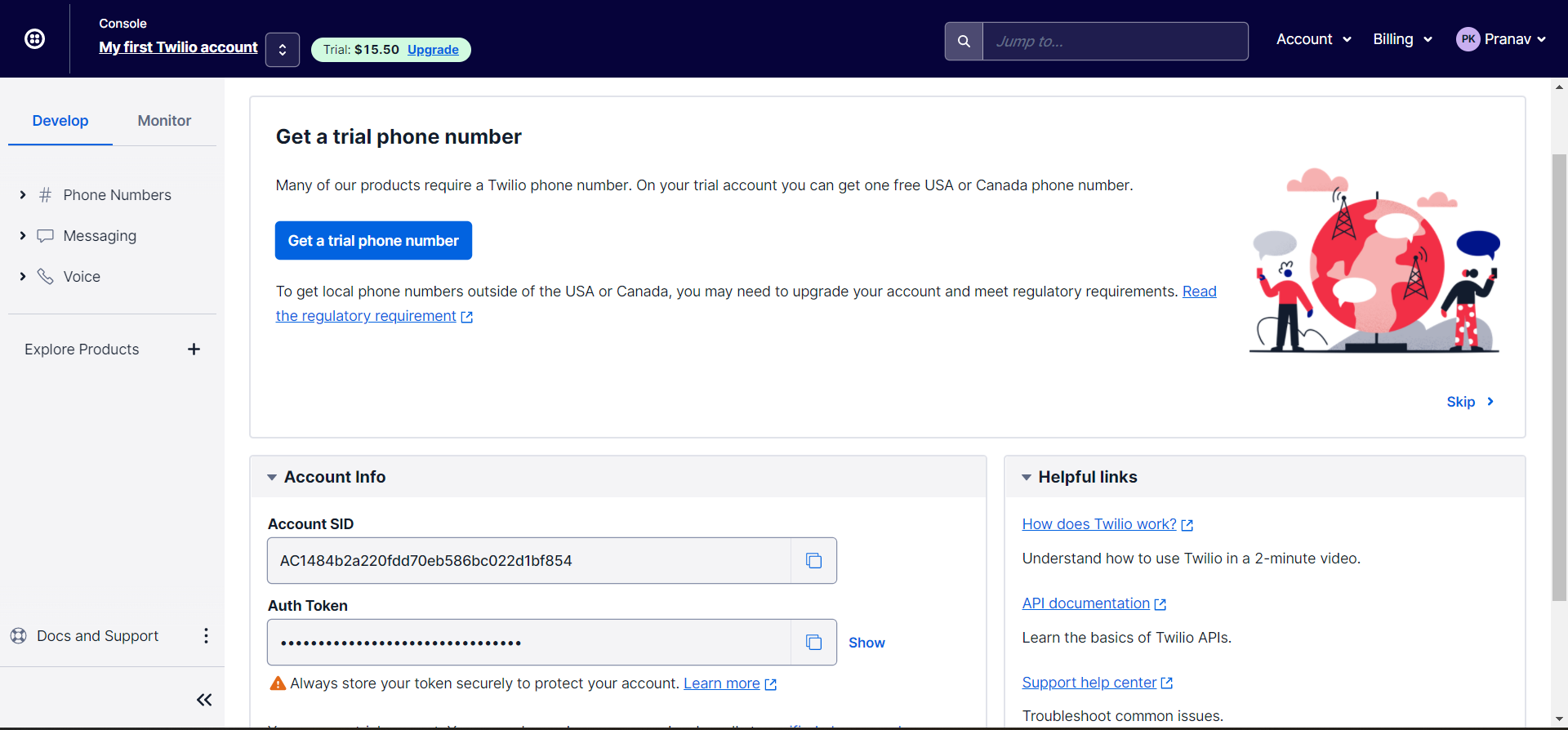
After creating your account, log in to the Twilio Console. From the dashboard, you can access your Account SID and Auth Token, which are required later during MuleSoft connector configuration.
You can also request a trial phone number from the console, which will be used for sending messages and making calls.
Registering Mobile Numbers
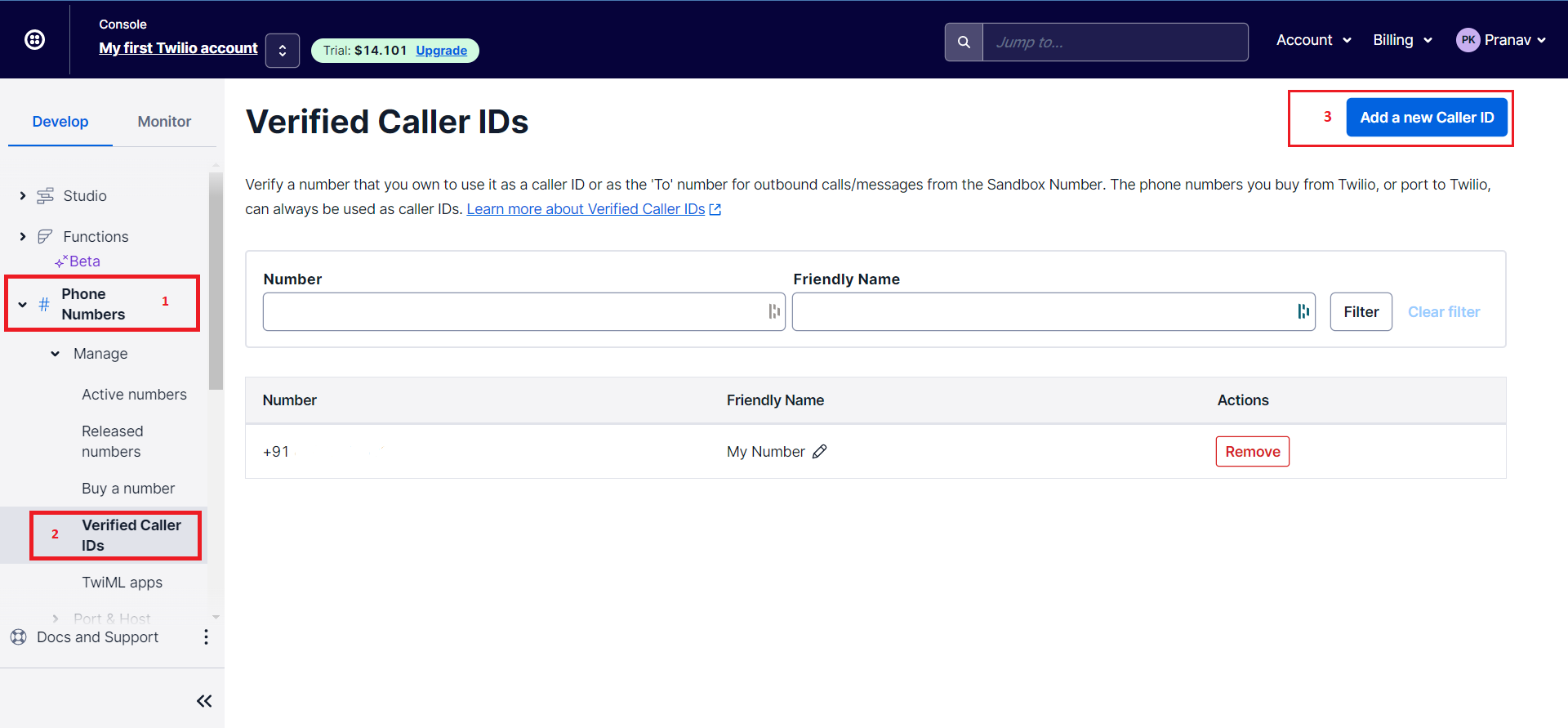
Before sending messages, you must register and verify recipient phone numbers. Navigate to Phone Numbers in the Develop section and select Verified Caller IDs.
Click Add a new caller ID, enter your phone number, and complete verification using the OTP sent to that number. Once verified, the number is ready to receive messages.
Importing the Twilio Connector in MuleSoft
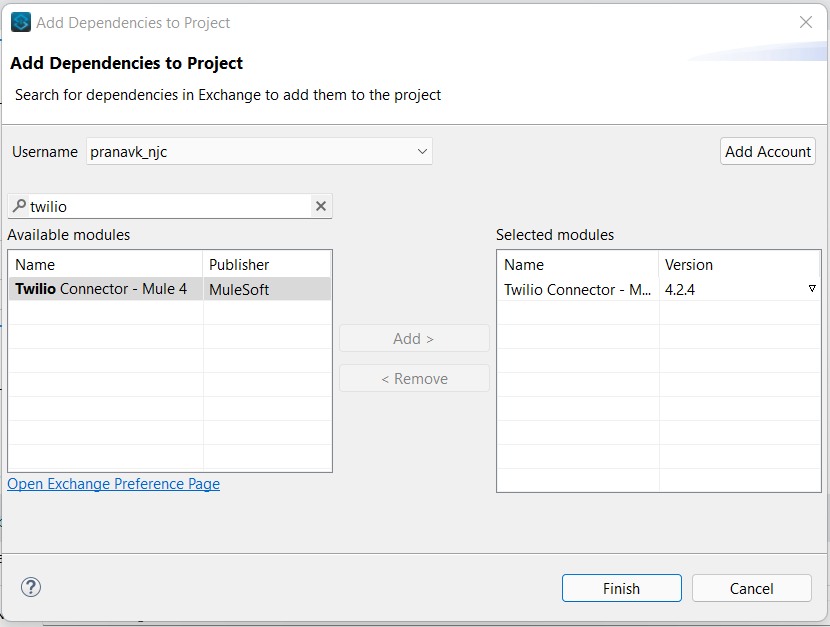
Now that the Twilio setup is complete, open Anypoint Studio and create a new Mule project. Import the Twilio Connector module from Anypoint Exchange.
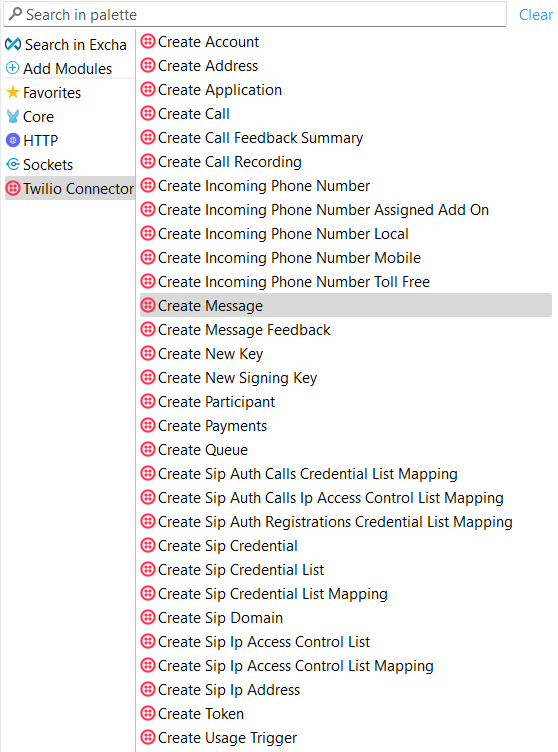
Select the latest available version and click Finish. After importing, MuleSoft displays all available Twilio operations supported by the connector.
Sending an SMS Using Twilio Connector
To send an SMS, drag and drop the Create Message operation onto the Mule canvas.
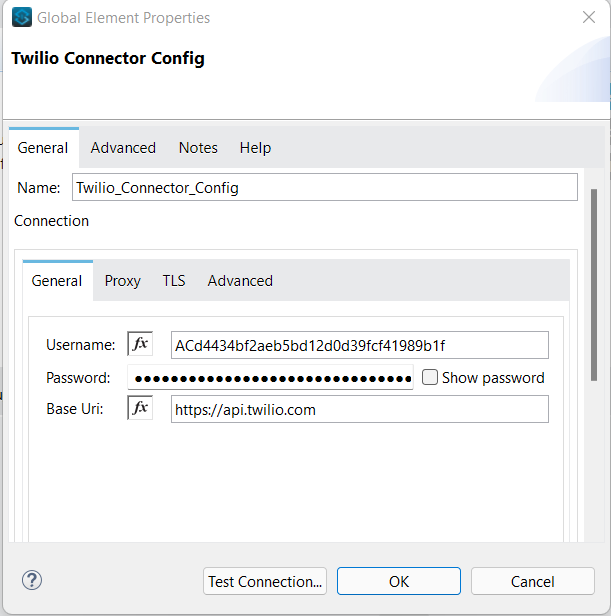
Configure the connector by providing your Twilio Account SID as the username and Auth Token as the password.
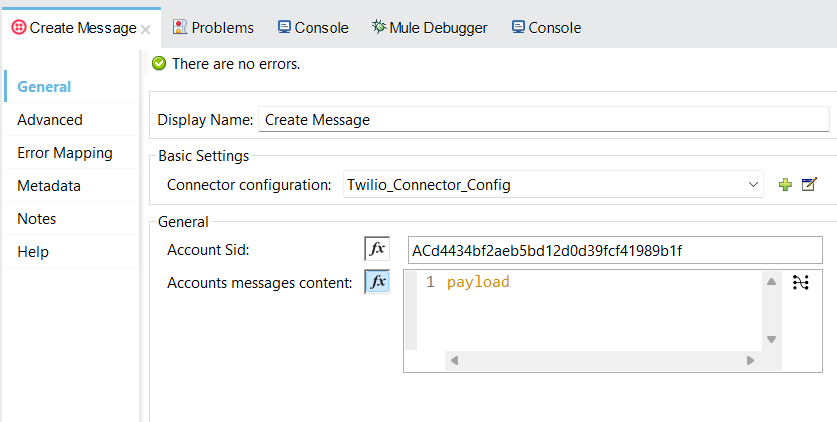
The Create Message operation internally calls the Twilio REST API. To complete the setup, pass the required payload parameters through the Properties Editor.
Transforming the Message Payload
The Twilio REST API expects a specific payload format. Add a Transform Message component before the Twilio Connector to define the payload.
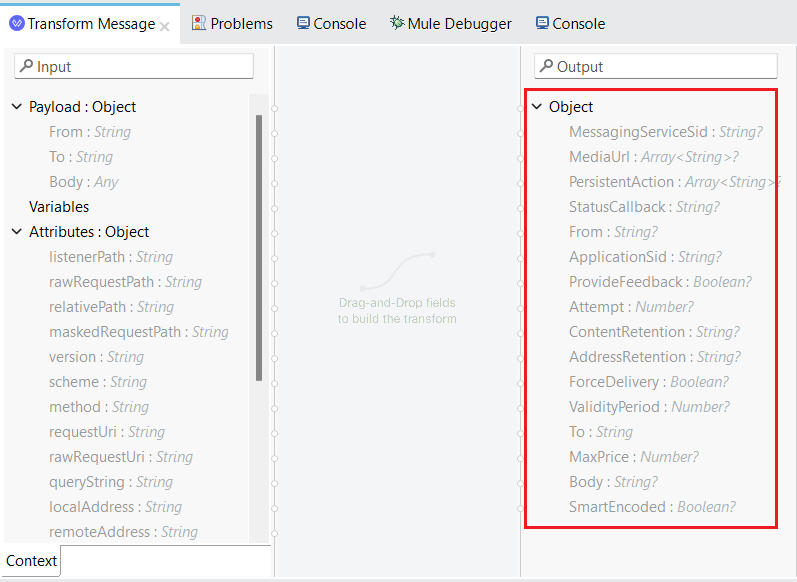
In this example, the target phone number is passed as a URI parameter, while the message content is included in the request body.
Handling the Response
After the Twilio Connector, add a JSON transformation to process the API response. Once deployed, the application sends the message and receives a response from Twilio.
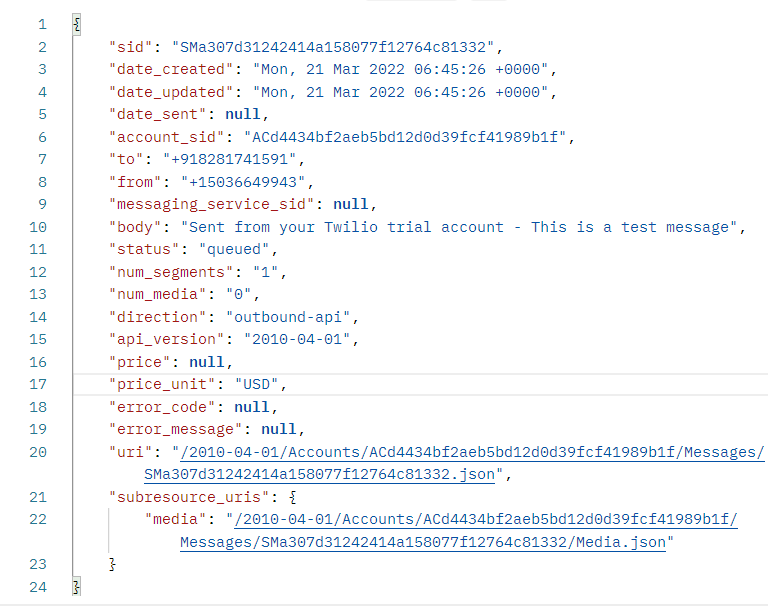
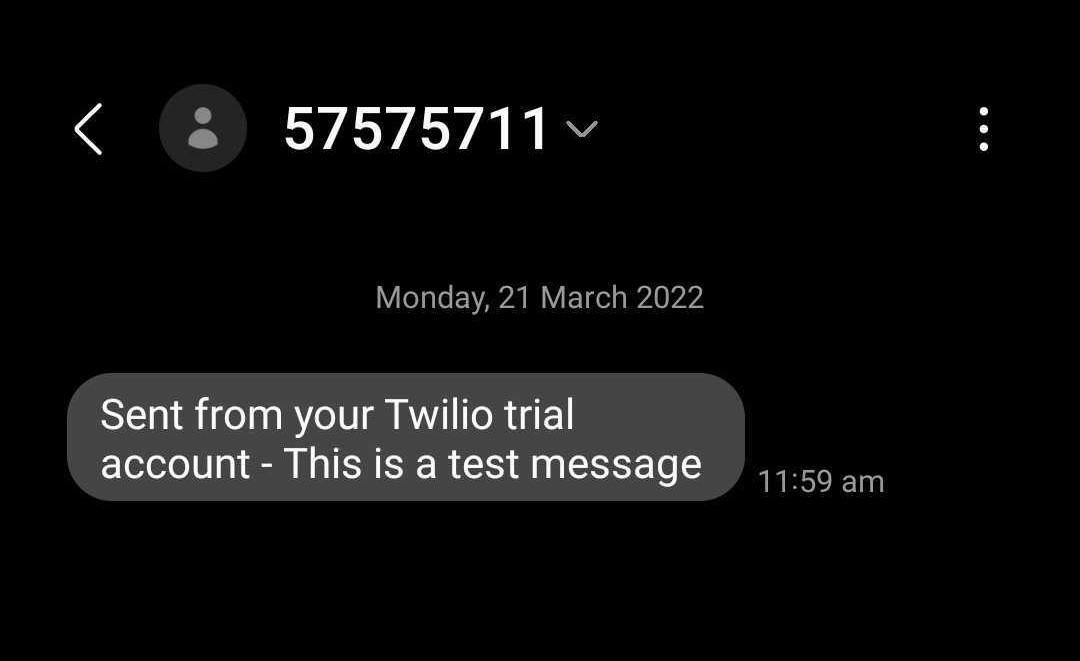
The recipient receives the SMS sent from the Twilio trial number.
Making Phone Calls Using Twilio
In addition to SMS, the Twilio Connector MuleSoft integration supports programmable voice calls. Twilio uses its Voice API to initiate and manage calls.
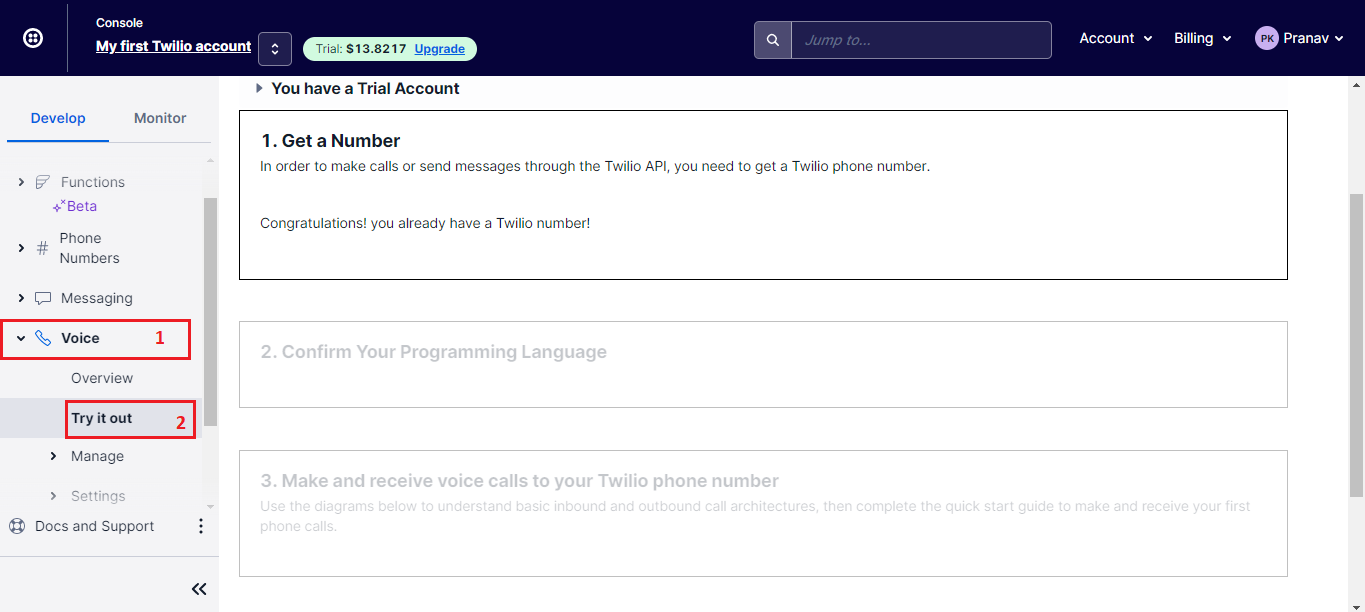
Since a trial number already exists, proceed to select the programming language and review the architecture diagram provided in the Twilio Console.
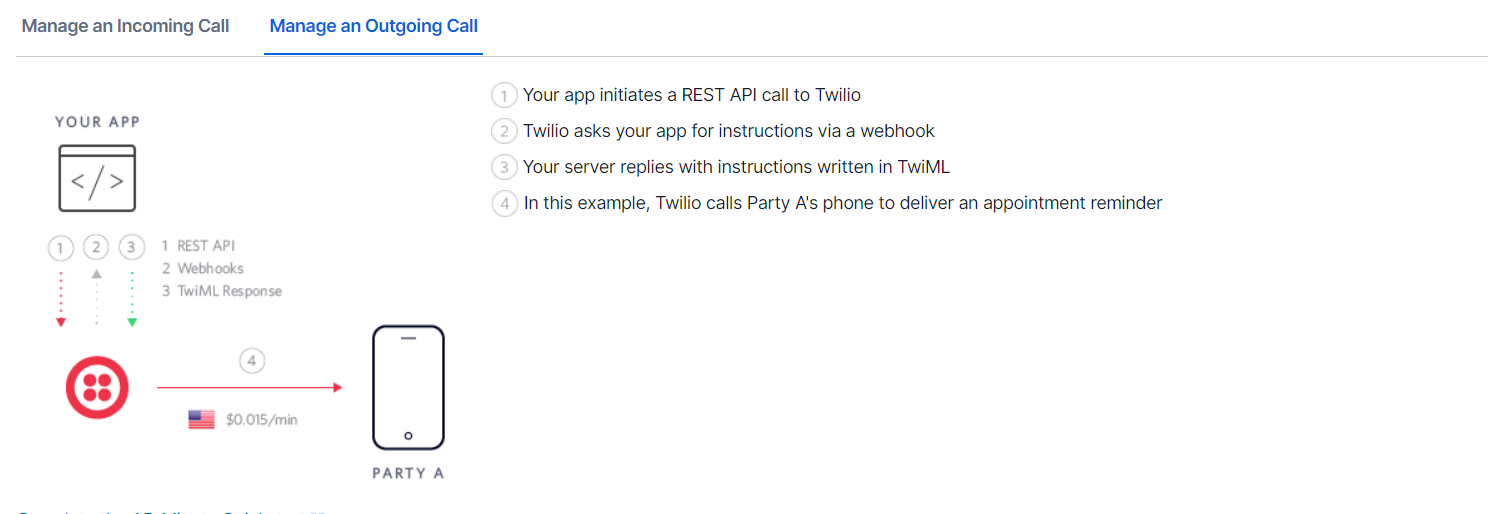
Implementing Calls in MuleSoft
In Anypoint Studio, configure an HTTP Listener and drag the Create Call operation into the flow.
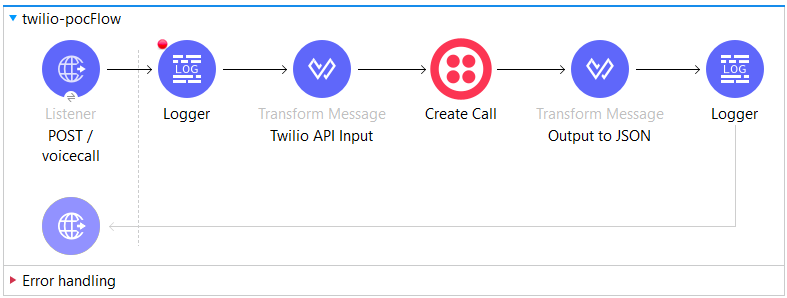
Add a Transform Message component to define the call parameters, including the target number and a TwiML URL.
Understanding TwiML
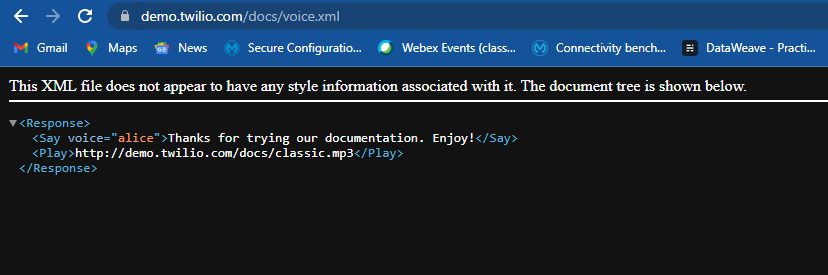
TwiML, or Twilio Markup Language, defines how Twilio handles calls and messages. Twilio retrieves TwiML instructions from the provided URL and executes them during the call.
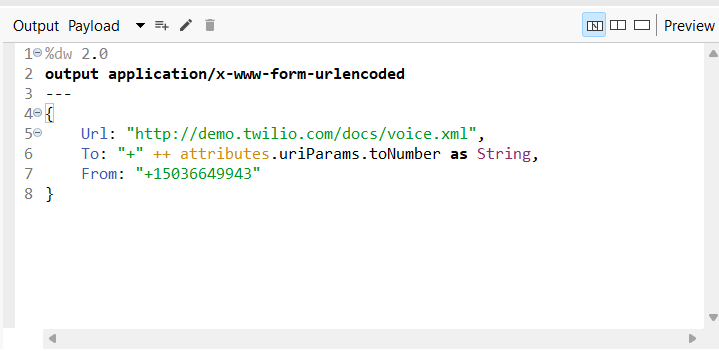
When the application runs, the target phone number receives a call and hears the message defined in the TwiML file.
Conclusion
This guide demonstrated how to configure and use the Twilio Connector in MuleSoft to send SMS messages and make phone calls using the Twilio REST API. The Twilio Connector MuleSoft integration enables scalable, programmable communication workflows across enterprise applications. With Twilio’s extensive API capabilities, MuleSoft developers can build advanced messaging and voice solutions tailored to business needs.